
Calender
Purpose
The Calendar module provides a yearly calendar view for managing employee leave applications and public holidays. Users can view holidays, navigate between different years, submit new leave applications, and review all leave records.
Navigation
Payroll
   └── Calendar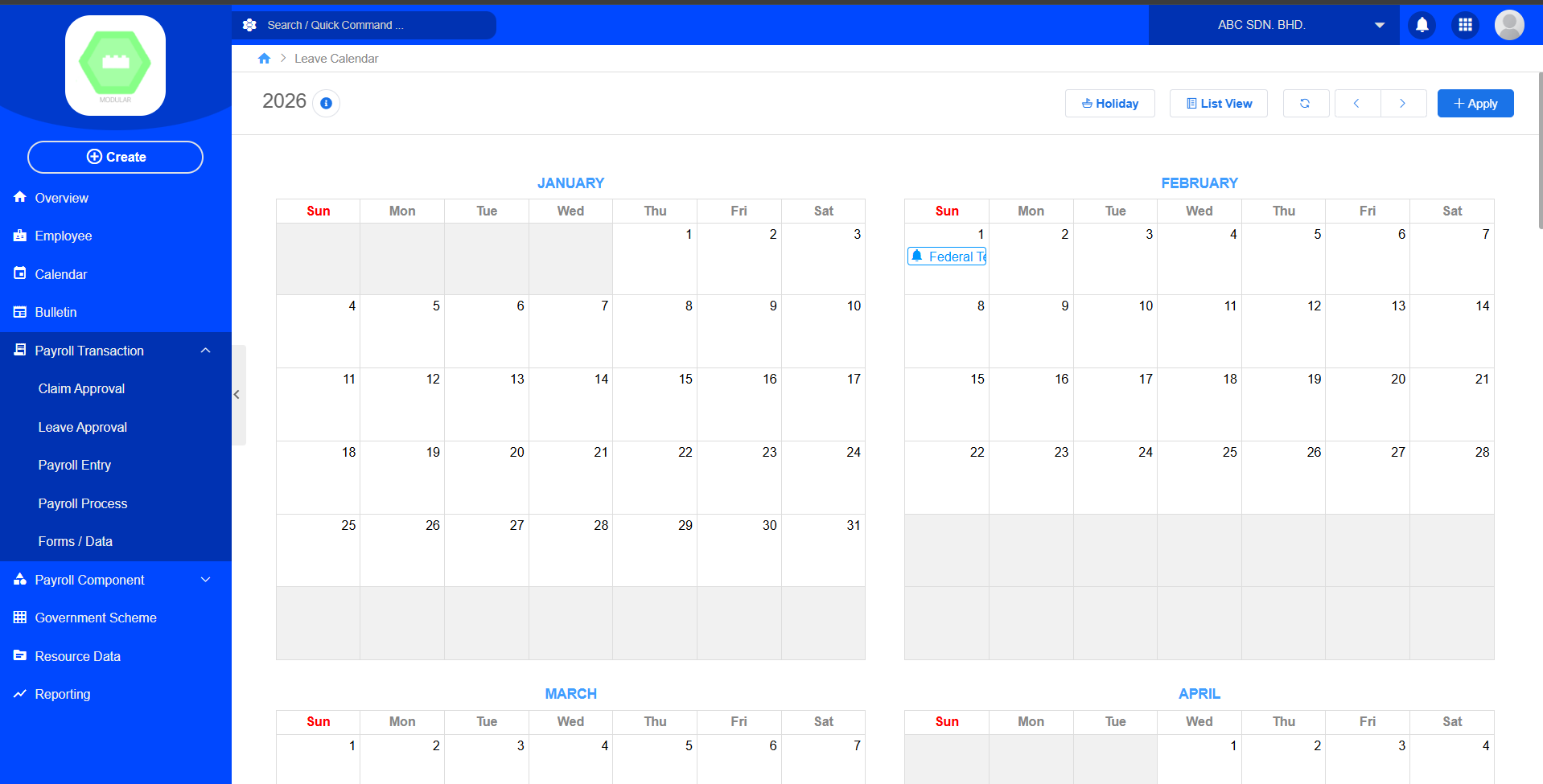
Calendar Overview
The Calendar displays the complete calendar for the selected year, allowing users to view leave schedules and public holidays.
Users can:
- View the annual calendar.
- Navigate to previous or next year.
- View public holidays.
- Create a new leave application.
- Switch to List View to view all leave applications.
Features
1. Year Navigation
Users can browse different calendar years using the navigation buttons.
Functions
- Previous Year
- Next Year
- Display current selected year
Purpose
Allows users to review leave records and holidays across different years.
2. Holiday
Displays all public holidays configured in the system.
Purpose
Enable employees to view official holidays when planning leave applications.
3. Apply Leave
Creates a new leave application.
Procedure
- Click Apply.
- Select the employee.
- Select the leave type.
- Enter the number of leave days.
- Select the leave date(s).
- Choose the leave length.
- Select the application status.
- Enter the reason for leave.
- Upload supporting documents if required.
- Click Save or Submit.
Leave Application Fields
| Field | Description |
|---|---|
| Employee | Employee applying for leave. |
| Leave Type | Type of leave (Annual Leave, Medical Leave, Emergency Leave, etc.). |
| Days | Total number of leave days requested. |
| Dates to Apply for Leave | Leave start and end dates. |
| Leave Length | Leave duration (Full Day, AM, or PM). |
| Status | Current leave status (Draft, Pending, Approved, Rejected). |
| Reason | Reason for applying for leave. |
| Supporting Document (URL/File) | Optional supporting document, such as a medical certificate or approval letter. |
Leave Length
| Option | Description |
|---|---|
| Full Day | Employee is on leave for the entire working day. |
| AM | Employee takes leave during the morning session only. |
| PM | Employee takes leave during the afternoon session only. |
Leave Status
| Status | Description |
|---|---|
| Draft | Leave application has been created but not yet submitted. |
| Pending | Waiting for manager or HR approval. |
| Approved | Leave request has been approved. |
| Rejected | Leave request has been rejected. |
List View
The List View displays all leave applications in a tabular format for easier searching and management.
Typical information includes:
| Column | Description |
|---|---|
| Leave No. | Leave application reference number. |
| Employee | Employee name. |
| Leave Type | Type of leave requested. |
| Leave Date | Approved leave period. |
| Days | Number of leave days. |
| Status | Current application status. |
| Applied Date | Date the application was submitted. |
Purpose
- Search leave applications.
- Filter leave records.
- Review leave history.
- Track application status.
Summary
| Function | Description |
|---|---|
| Year Navigation | Browse previous or next calendar years. |
| Holiday | View company and public holidays. |
| Apply Leave | Create a new leave application. |
| Leave Management | Record leave details, reasons, and supporting documents. |
| List View | View and manage all leave applications in a table format. |
Workflow
Employee
      │
      ▼
Open Calendar
      │
      ▼
Click "Apply"
      │
      ▼
Complete Leave Application
      │
      ▼
Submit Application
      │
      ▼
Pending Approval
      │
      ▼
Approved / Rejected
      │
      ▼
Leave Recorded in Calendar